 1. Capture the page
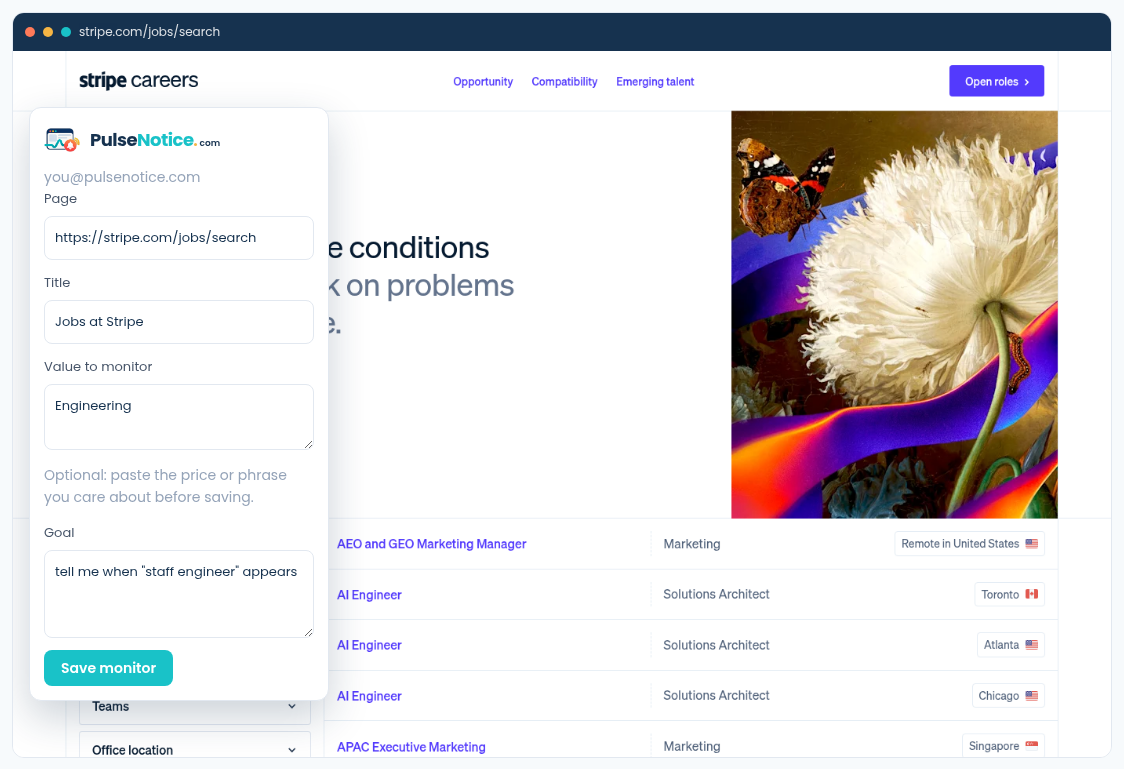
From Chrome, open the public page, then the extension. It fills URL and title; you add the goal and optional selected text. Or paste the same fields on the homepage checker.
How-to · Basics
Paste a public URL, write the event in one sentence, and see a live excerpt without creating an account. Saving the monitor is what starts cloud checks and email. This walkthrough uses a careers page as the sample — the same flow works for prices, stock, changelogs, and public terms.
Sample goal: tell me when "staff engineer" appears
Sample selected text: Engineering
1. Capture the pageFrom Chrome, open the public page, then the extension. It fills URL and title; you add the goal and optional selected text. Or paste the same fields on the homepage checker.
Paste the page URL and a one-sentence goal (optional selected text helps). We fetch the public HTML, show an excerpt, and rate-limit the preview. Nothing is saved and no email is sent from the checker alone. Use a page that does not require login.
No credit card. The free plan covers a small number of monitors with hourly checks and email. Saving is what enrolls the URL in the scheduler. We do not log into sites or store passwords for third-party pages.
On the live page, open the extension so URL, title, and selected text fill in. Write the goal in plain language, then save. Cloud checks continue after the browser closes — the extension is a capture helper, not the checker.
Each notification includes why the goal became true and an excerpt. Mark Useful or Not useful. If the excerpt is enough, you never need a full-page screenshot. If you need context, open the original URL from the alert.
Career boards, retail PDPs, and docs sites all reshuffle chrome. A specific keyword or threshold keeps fingerprints on the fact you named. Vague goals like “tell me when anything changes” are closer to screenshot diff — and noisier — than naming the event.